


Google officially launched the v2 Consent Mode requirement for Google properties in the European Economic Area (EEA) to ensure that their properties are Digital Markets Act (DMA) compliant in March.
Consent mode v2 introduced two new parameters:
ad_user_datawhich establishes consent to send advertising-related user data to Google.
ad_customizationwhich establishes consent for personalized advertising.
This release sent PPC marketers into a frenzy to ensure compliance before the deadline.
However, a significant number of advertisers have not adopted consent mode and their ad accounts are at risk of being penalized.
Here are four ways to check your current Google Consent Mode settings.
1. Check your consent mode settings in Google Ads
The first and easiest place to start checking is in Google Ads. Within your ad account, go to Tools & Settings > Measurement > Conversions > Diagnostics.
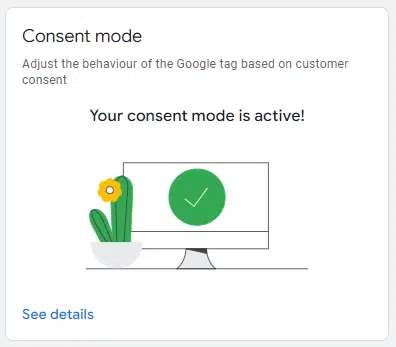
If consent mode is active, under Diagnostics, you’ll see the following widget:
What this tells you is that Google is:
Reading and recording the consent states of your website users. Adjust the behavior of tracking tags based on the consent states it reads.
However, it doesn’t tell you if the correct states are being passed.
Therefore, more checks and tests are needed.
Setting consent mode using Google Ads
If the first step didn’t show you an active consent mode widget, there’s work to be done to set up consent mode.
Google has a few direct integrations that you can access from your Google Ads account:
Go to Tools & Settings > Settings > Data Manager > Google Tag > Manage > Admin. In Google Tag Management, click Set consent mode. Then choose your banner type and follow the steps
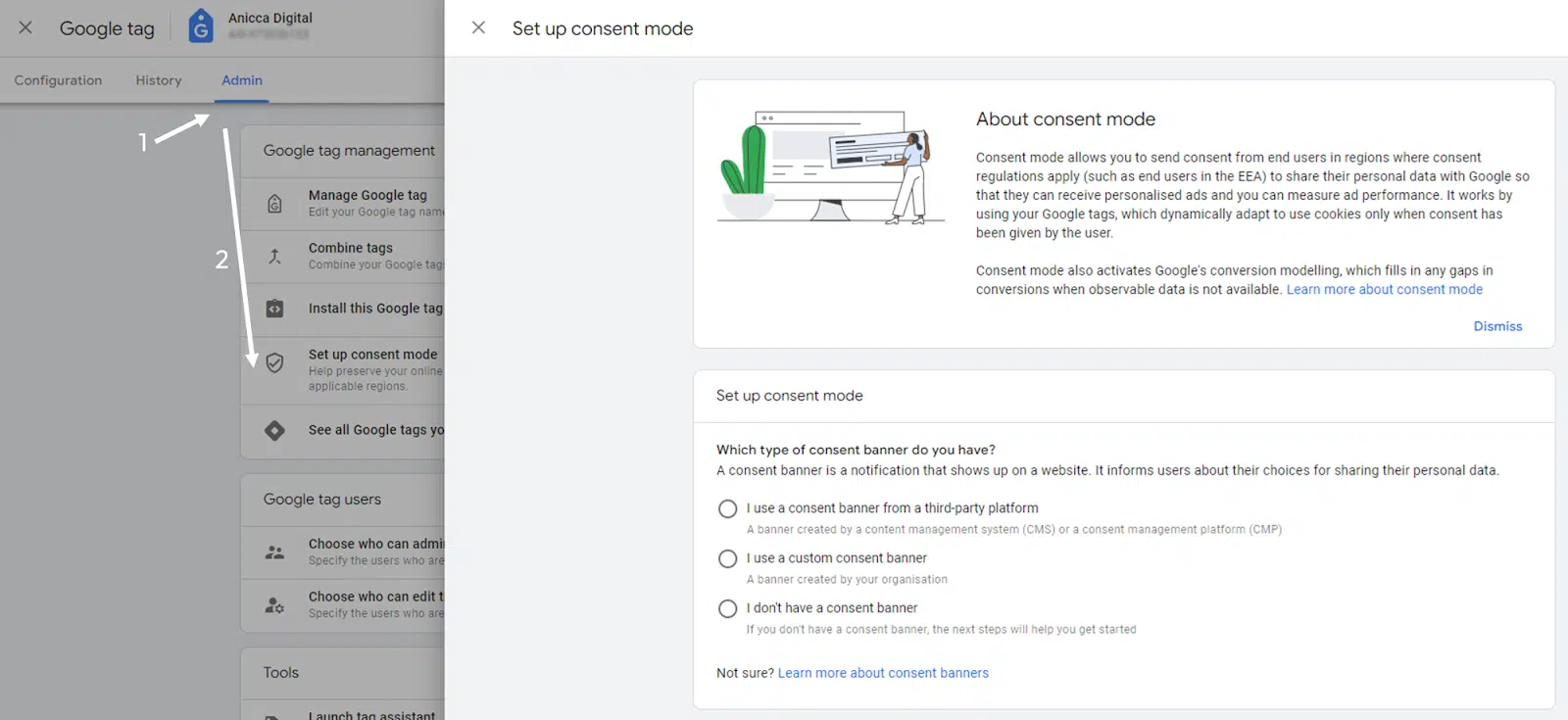
Once you select your web platform or CMP (Consent Management Platform), it will provide you with step-by-step instructions on how to set up the consent mode.
If you don’t already have a consent banner, it will also tell you how to get started.
2. Checking the consent status in Google Analytics 4
Like Google Ads, Google also released a feature within GA4 to check consent status.
Again, this allows you to check whether Google can read and record the consent choices made by users on your website.
To use this feature, follow these steps:
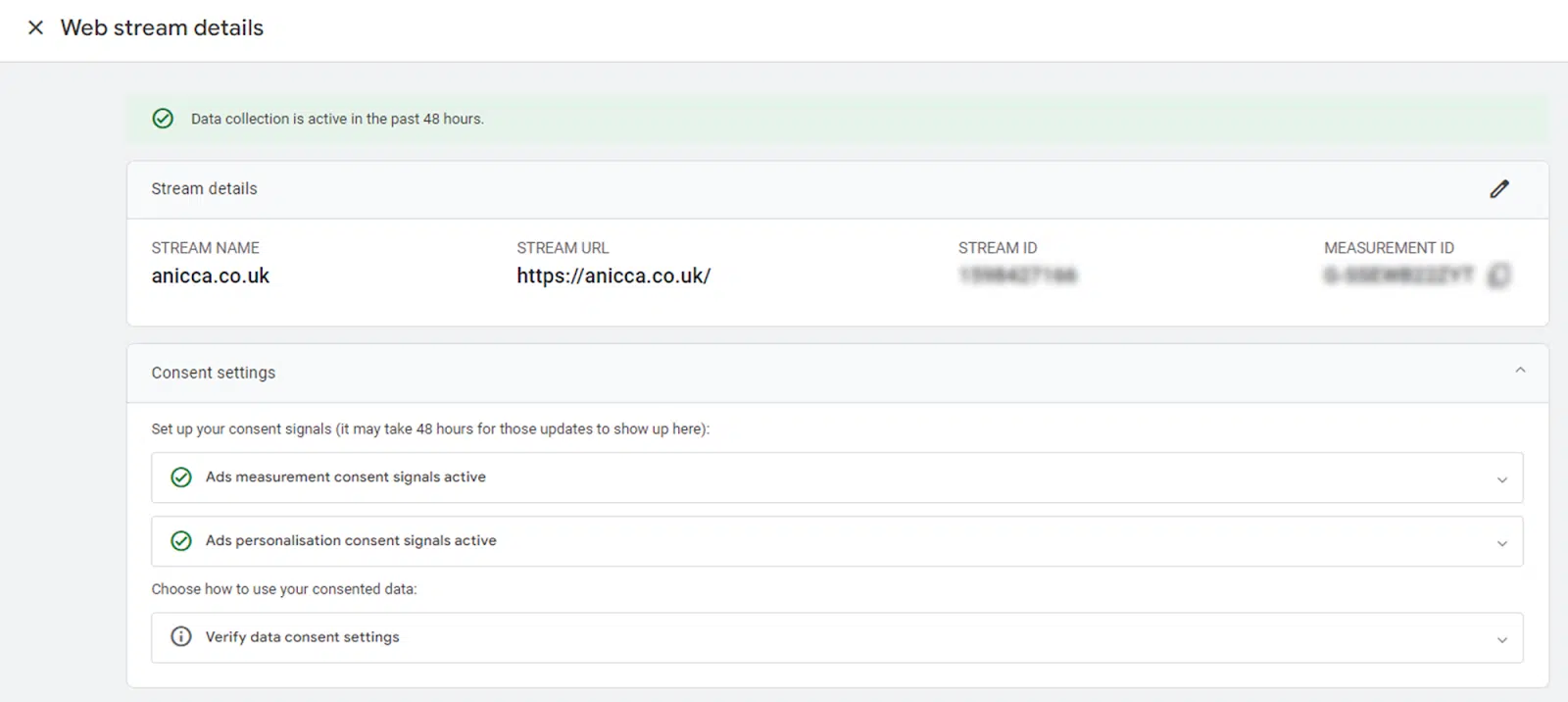
Navigate to your GA4 account. Select Admin. Under Data Collection and Modification, select Data Flows. Select your website’s data stream. Click the Consent Settings drop-down menu.
The state of consent settings in GA4 has three parts. It tells you whether measurement and personalization consent signals are active and allows you to verify how Google shares data between its services.
Go deeper: How to set up Google Analytics 4 using Google Tag Manager
Get the daily search newsletter marketers trust.
Google released a feature in Google Tag Manager (GTM) to help marketers ensure that the correct consent settings are applied to tags implemented using GTM.
The first thing you need to do is enable the consent overview setting in your GTM account:
Select your container and click Admin > Container Settings. Under Additional settings, check the box to enable consent overview.
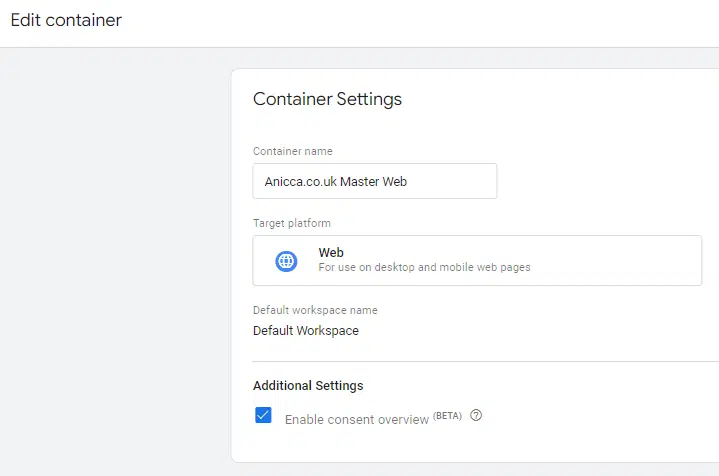
Once the setting is enabled, you can return to your workspace and use it to check which consent settings have been applied to each tag.
To find it, you’ll need to switch from Overview to Tags, and next to the blue New button, you’ll see a shield icon.

Once clicked, it will show you each account label and whether consent settings have been configured. It also identifies any consent settings embedded within a tag. Google tags, for example, have consent built into GTM.
4. Check consent status changes with Google Tag Assistant
You can use Google Tag Assistant to check which states are being passed and updated as users move around the website and interact with your cookie consent banner.
There are two places you can run these checks:
Preview mode in GTM offers additional benefits. Allows you to see which tags are being fired on each fired event. This helps you understand whether tags are reading the correct consent options and whether they are being triggered without any consent options.
To check for consent updates on the page using both methods, enter your URL to load in debug mode.
In the left navigation, you’ll see all the events that are triggered in Tag Assistant. You can click on each event and toggle the output between Tags and Consent to see which consent choices have been made and which tags have been enabled.
The consent states will look similar to the following screenshot:
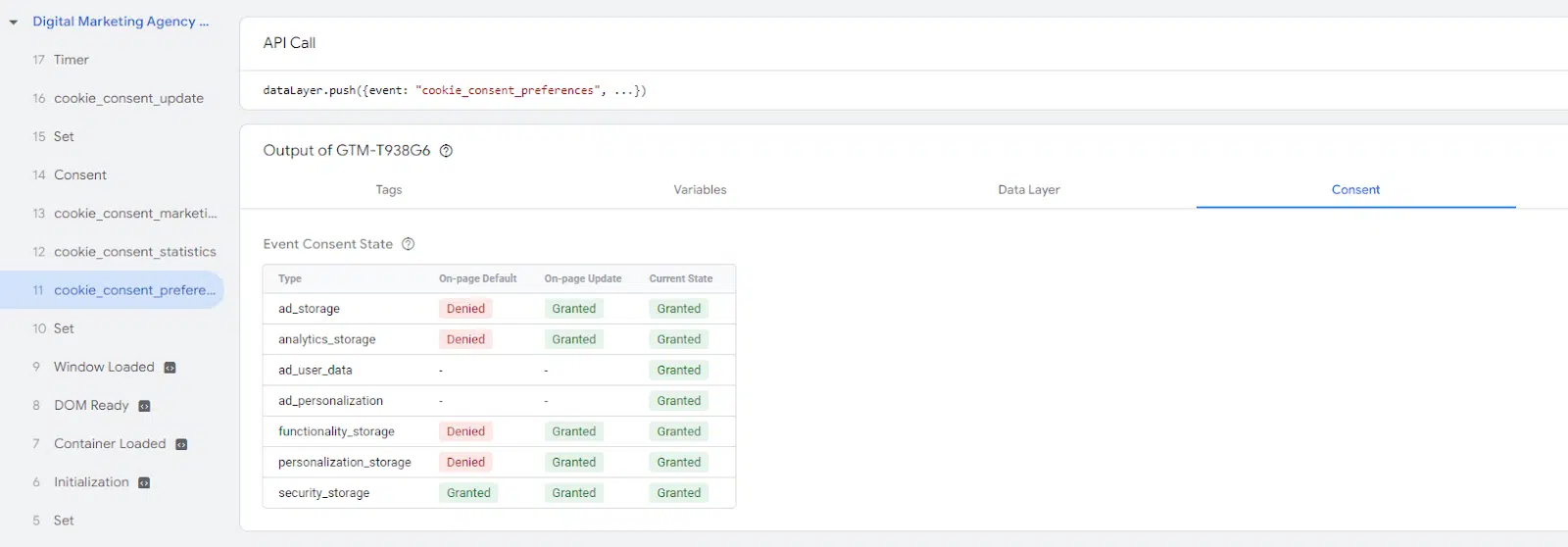
You will see the default status. This is normally refused for anything other than essential cookies required for website functionality.
Depending on the event you select, you will see the update on the page and the current status.
If advertising cookies were denied, you would not want your ad platform tags to fire and drop cookies when you return to the tags.
One point to note is that Google tags will always appear as an activation in preview mode as consent settings are incorporated and tags adjust their behavior automatically.
Verify your Google consent mode settings now
Consent mode will be a crucial element in moving forward with any comprehensive tracking setup and ensuring your business is compliant.
To avoid ad account penalties or data issues, you’ll want to make sure you have consent mode turned on and that it’s done correctly, too.
Dig deeper: How to combine GA4 and Google Ads for powerful paid search results
The opinions expressed in this article are those of the guest author and not necessarily Search Engine Land. Staff authors are listed here.
[ad_2]
Source link