


Understanding all the features of Google Analytics 4 (GA4) is essential to get the most out of it. By doing so, you can configure the tool to analyze data accurately and efficiently. It also allows you to draw the best conclusions to design, refocus and define your digital strategies.
GA4 users can configure many features, including custom dimensions, which allow for more detailed and personalized data analysis.
What are the dimensions in GA4?
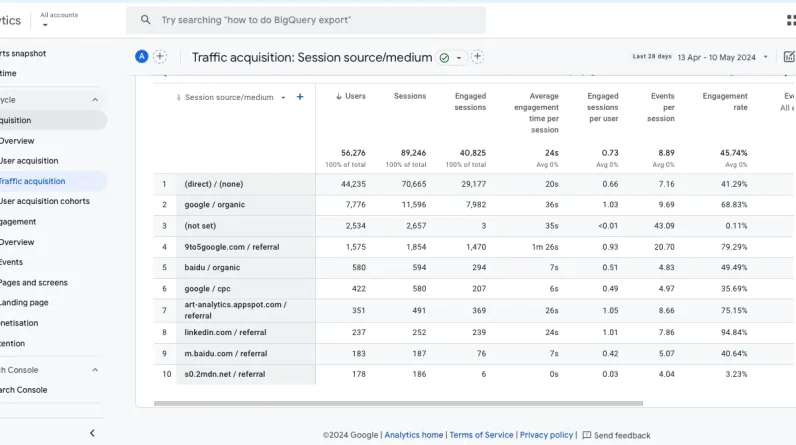
Google defines a dimension as an attribute of your data. It describes your data and is usually written in text rather than numbers.
An example of dimensions would be source/medium, which shows how a user arrives at a website:
Another example of a dimension would also be the name of the event, which shows the different events that happen on a website and how the user interacts with it:
extensive list of dimensions automatically by default.
However, if this is not enough for your strategy analysis and you need to analyze attributes in more detail and specifically based on website goals, you can create custom dimensions.
Events and event parameters
To understand custom dimensions and how to create them, you first need to understand some GA4 concepts: events and parameters.
Events are the metrics that allow you to measure specific user interactions on a website, such as loading a page, clicking a link, or submitting a form. Event parameters are additional data that includes site information about these events (ie, additional information about how users interact with a website).
There are two types of event parameters in GA4, depending on how the tool captures them:
Parameters collected automatically: These are preconfigured by GA4, which automatically captures a set of parameters (eg page_location, page_referrer or page_title). Google offers one list of all these event parameters automatically created or enhanced measurement.
Custom settings: allow you to collect information that is not captured by default. This applies to recommended events i custom eventswhere custom configuration is required.
What are the GA4 custom dimensions?
Custom dimensions are attributes that allow you to describe and collect data in a custom way. Basically, these are parameters you create in GA4 to capture information that the tool doesn’t track automatically.
Types of custom dimensions
Depending on the information you want to collect in a custom way, you can create different types of custom dimensions, as indicated by Google:
When is it recommended to create custom dimensions?
Before creating custom dimensions to analyze your data in more detail, it’s a good idea to check if these attributes already exist as automatic events predefined by GA4 or as options within the enhanced measurement events.
To determine if the data you want to analyze already comes from automatic events, you can check the list provided by Google Analytics below Events collected automatically. These events are collected automatically, so the user does not need to take any additional action.
This is not the case of the improved measurement eventsthese must be enabled within your GA4 account if you wish to collect this information.
To enable these attributes, you will do so in Admin > Dataflows > Events > Enhanced Measurement.

If the information you want to analyze is not included within these automatic events, we recommend that you create it as a custom dimension.
Get the daily search newsletter marketers trust.
How to set up custom dimensions
Regardless of the type of custom dimension, it must be created using Google Tag Manager. Below is a step-by-step guide to setting up a custom dimension with event scope.
Before you begin, make sure your GA4 and Google Tag Manager accounts are set up and linked correctly.
Next, you need to define and create which event parameter you want and send it as a custom dimension to GA4.
In this case, you will show in the following image how to create the event parameter to parse the URL of the video that a user plays on your website:
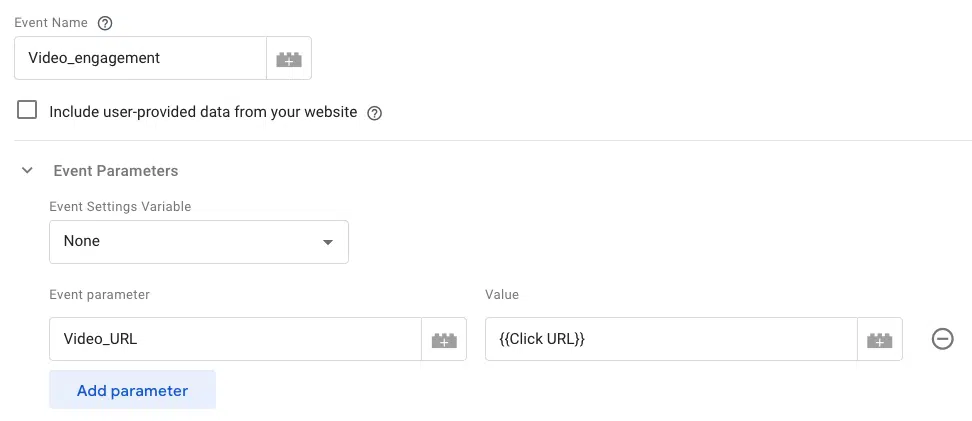
As this is a manually configured event parameter that is only included in Google Tag Manager, it will not be sufficient for GA4 to automatically include it in its reports. You will need to notify GA4 of this by going to Admin > Data View > Custom Definitions.
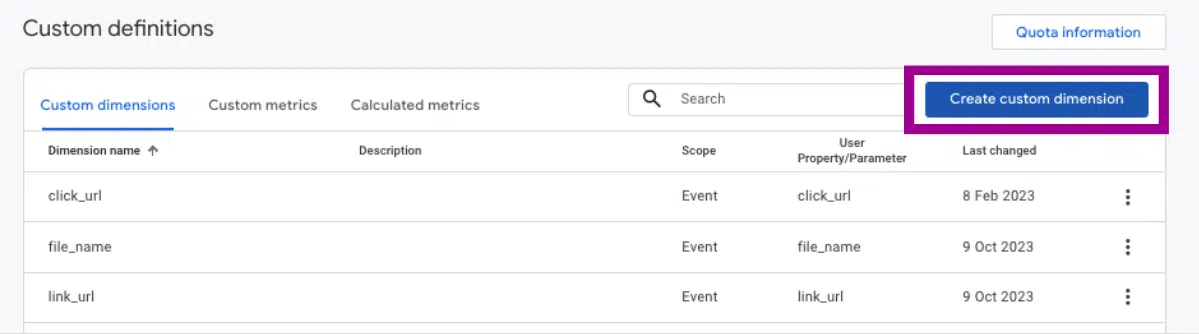
Create the custom definition with your event parameter information:
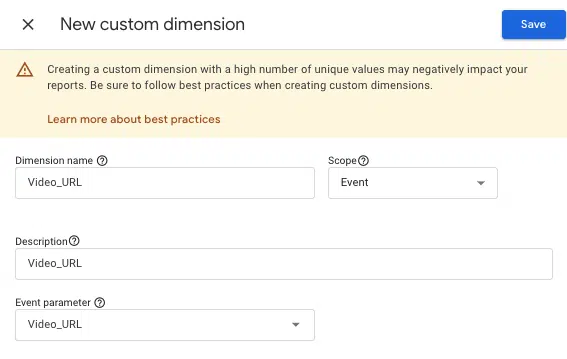
Now that your custom dimension has been created, use DebugView to check that it is being compiled correctly and that it is configured correctly.
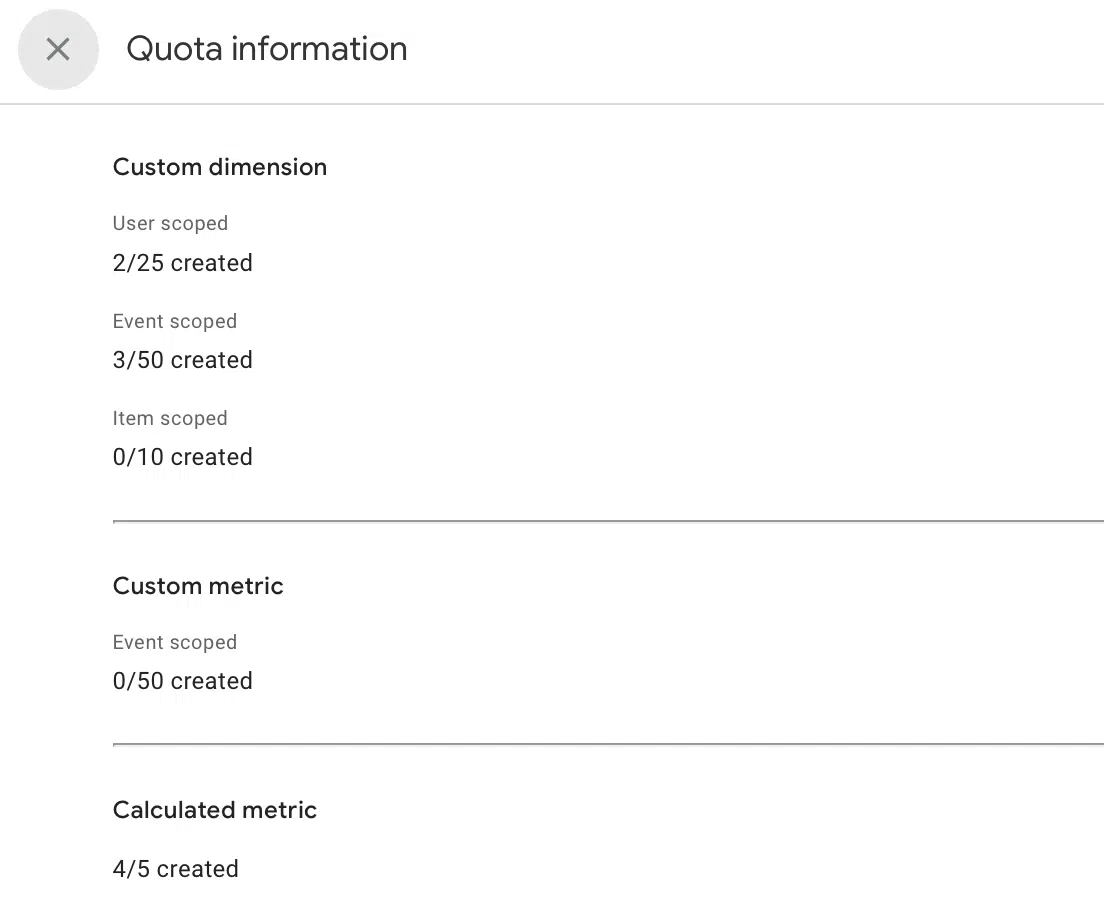
At the same time, in the Custom Definitions section, under Quota Information, you can monitor the total number of custom dimensions created in your GA4 account.
How many custom dimensions can I set up in my GA4 account?
The number of custom dimensions that a user can create is limited, although this limit is often difficult to reach.
To ensure that you only create the most useful dimensions, first define the highest priority KPIs for your website or app, then create and configure only those dimensions that really matter to you. To avoid exceeding this limit, use predefined dimensions and metrics whenever possible.
How to analyze custom dimensions
Custom dimensions will provide you with additional information about your data. This information can be analyzed within GA4.
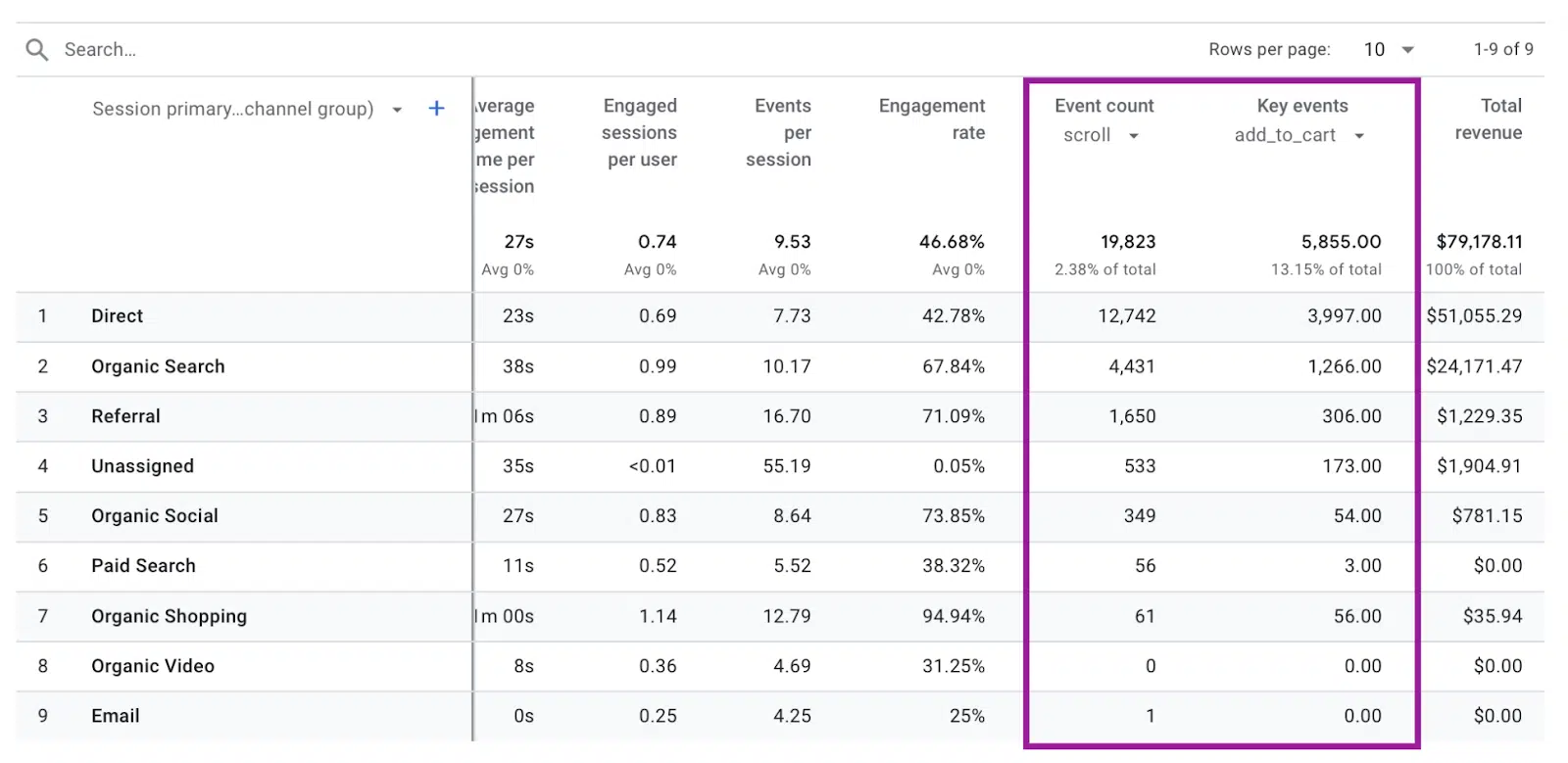
In the case of GA4, you can analyze the custom dimensions through the same reports that the tool offers in a custom way, either in the traffic or event dashboard, for example:
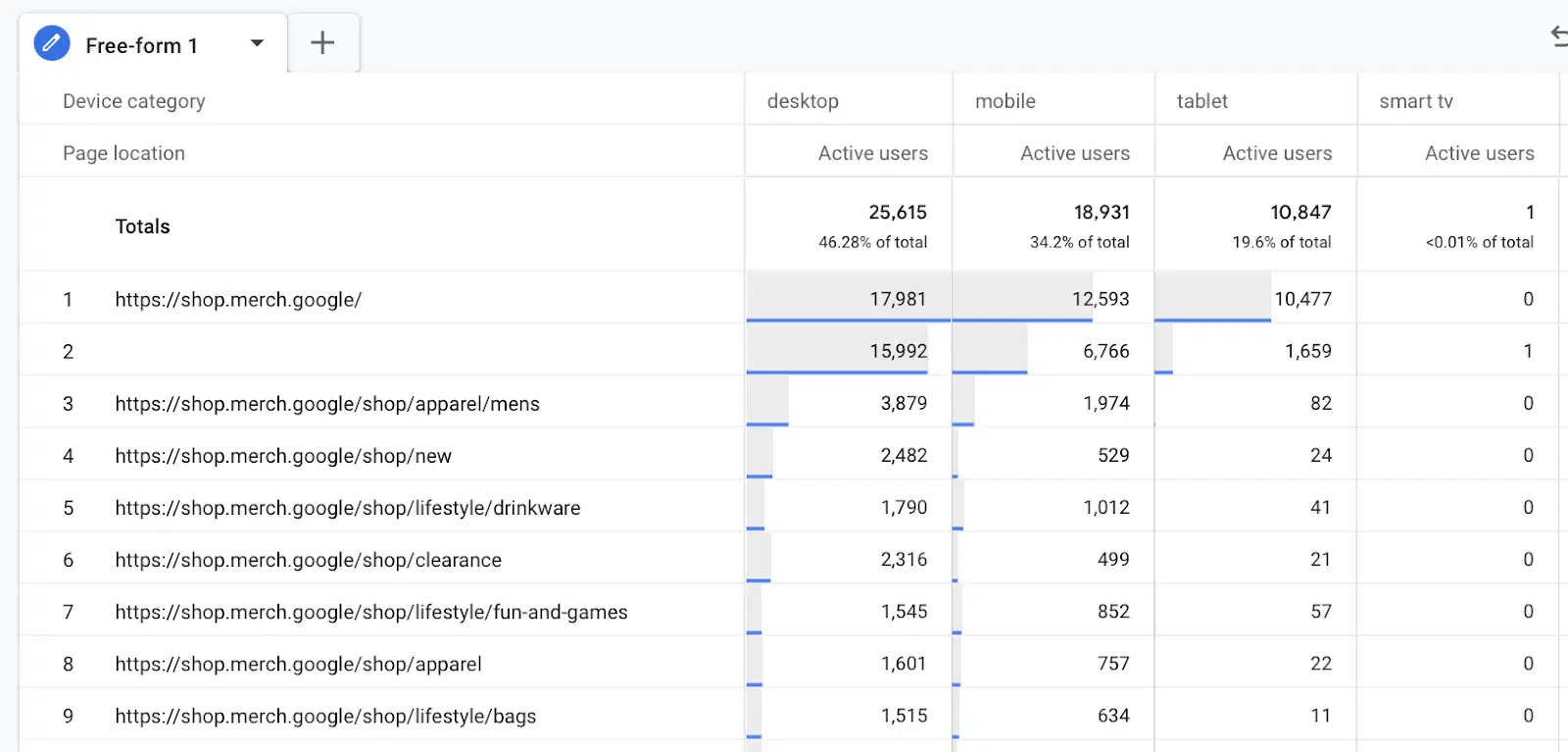
Custom dimensions can also provide more information about your data when you use the explore section:
Creating custom dimensions is a valuable method of enhancing your analytics with valuable insights for your business.
The opinions expressed in this article are those of the guest author and not necessarily Search Engine Land. Staff authors are listed here.
[ad_2]
Source link