


Unlike Universal Analytics, Google Analytics 4 (GA4) does not provide all metrics and functionality by default. It also doesn’t automatically show Google Search Console (GSC) data in your reports.
To see valuable organic search statistics in GA4, you must manually connect your Search Console property and publish reports.
Learn how to link your GA4 and GSC accounts so you can analyze your site’s organic search performance along with other key metrics.
Getting started: How to link GA4 to Google Search Console
To view Google Search Console data in our GA4 report, we will need to follow the steps detailed below.
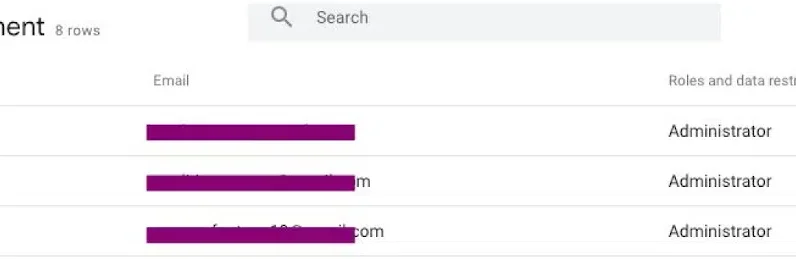
First of all, to link Search Console with GA4, we need to make sure we have access to both accounts:
Both must be under the same Gmail account.
To check Google Analytics 4, go to Admin > Account > Account Access Management.
To check Google Search Console, go to Settings > Users & Permissions.
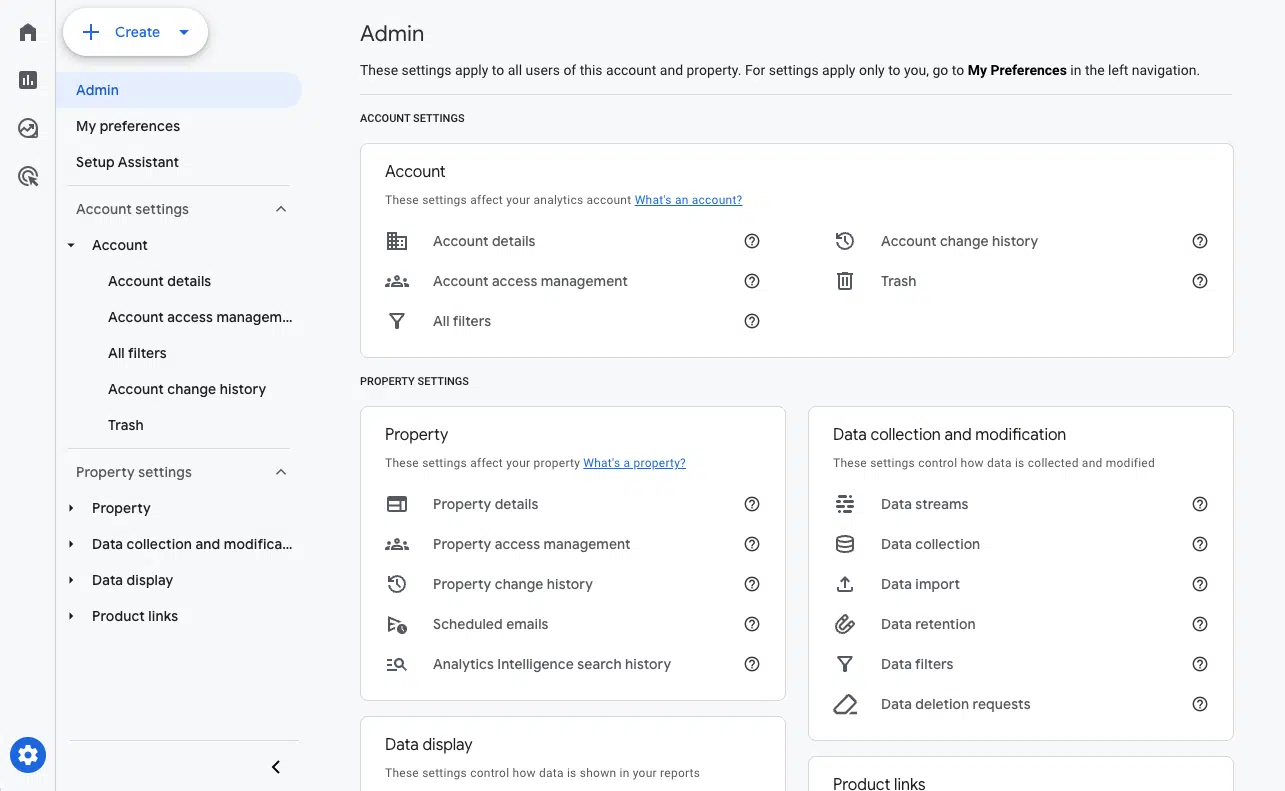
Step 2: Then go to Product Links > Search Console Links.
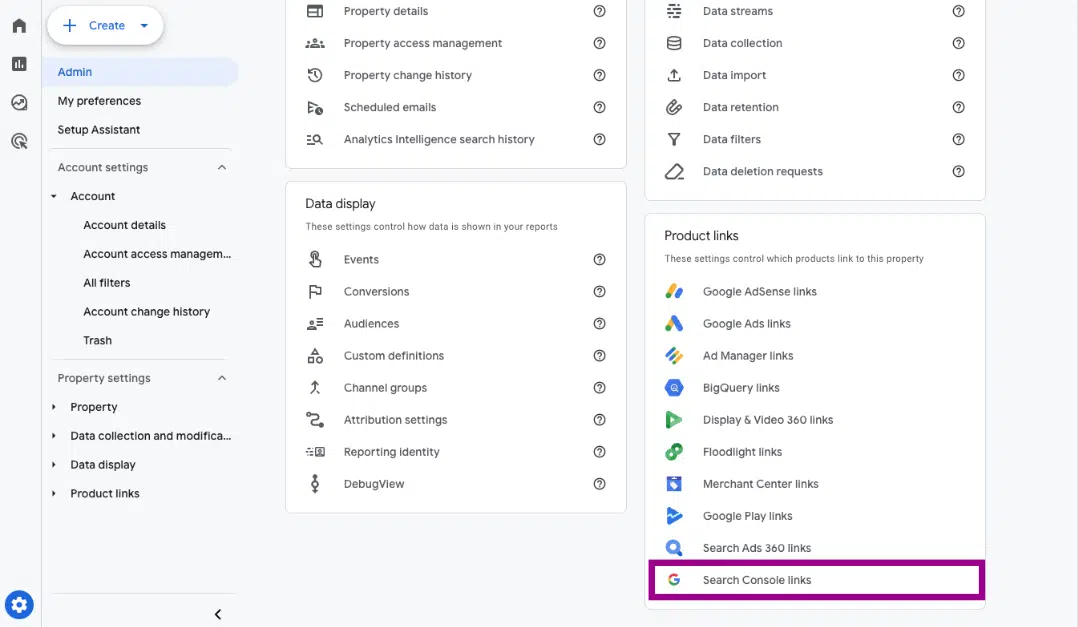
Step 3: The following panel will open. Click the blue link button.
Step 4: Choose and find your Search Console property and confirm your site’s web data stream. Check that everything is correct and send it.
Your GA4 account is now linked to your property in Search Console.
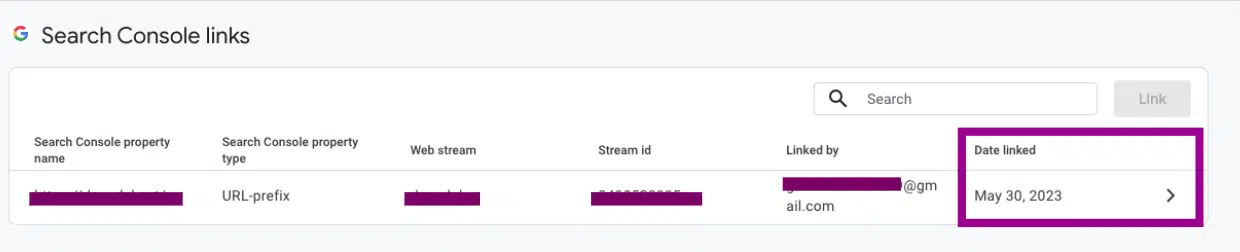
After this process is complete, you have successfully linked GA4 and Google Search Console.
If your Search Console account was previously set up and site verification was done, you can access historical data in the same Search Console report in GA4.
Search Console includes up to 16 months of data. If you’ve just created and verified your Search Console account, it will start collecting data going forward.
Get the daily search newsletter marketers trust.
How and where can I see the Google Search Console data published in my GA4 report?
Simply linking GA4 to Google Search Console does not automatically show data in your GA4 analytics account. To access this data, the Google Search Console report must be published.
How to publish Google Search Console report in GA4
To publish the report and be able to see the data within our account, we will need to:
Go to Reports > Library. Select the Google Search Console collection, preconfigured by GA4. Click the three dots in the upper right corner of this collection.
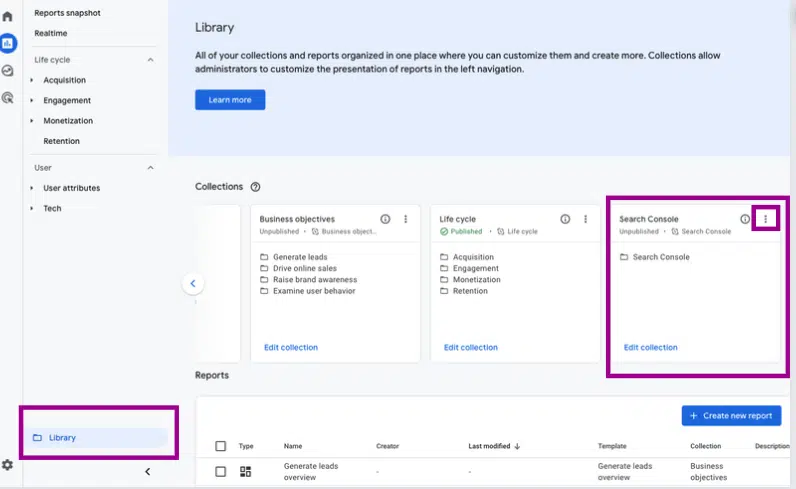
Don’t forget to click Publish.

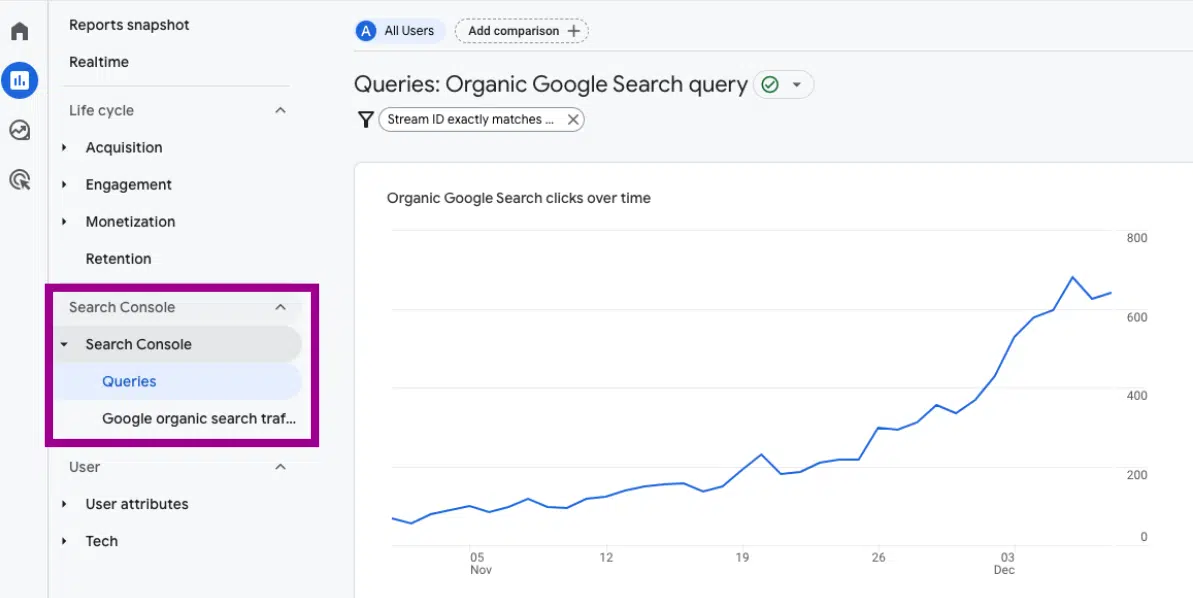
The Search Console report will now also appear in your GA4 dashboard:
What kind of Google Search Console reports does GA4 offer by default?
Search Console reporting in GA4 is structured into two different reports:
Report of inquiries
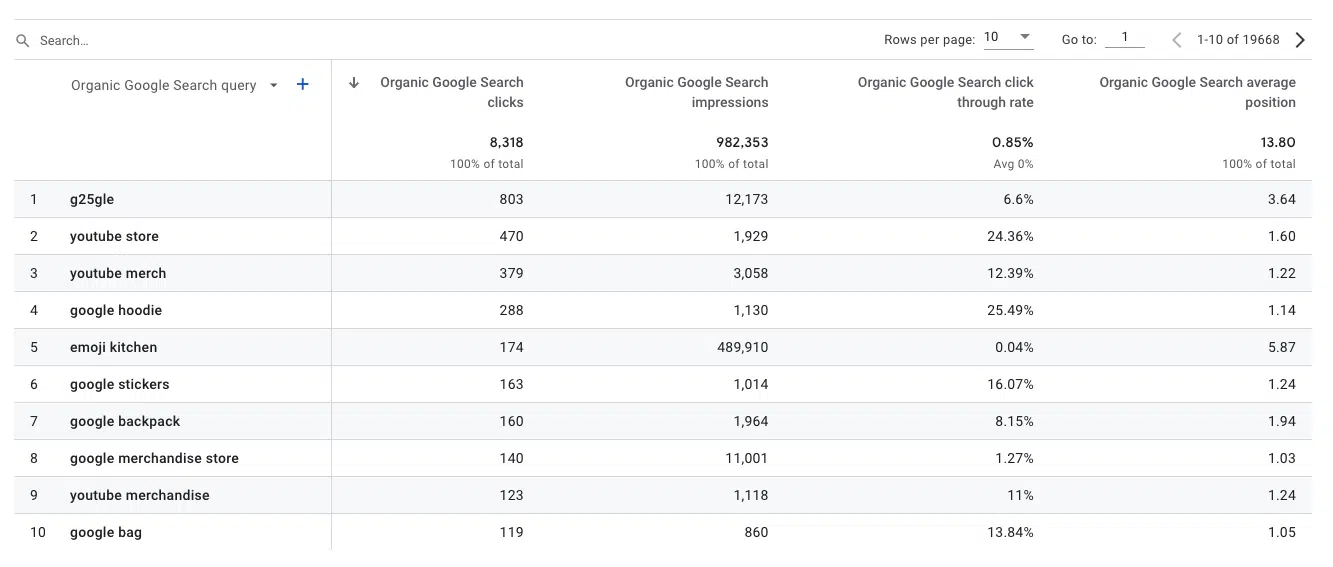
The Queries report prioritizes showing metrics related to search terms searched by users visiting your website from Google’s organic search.
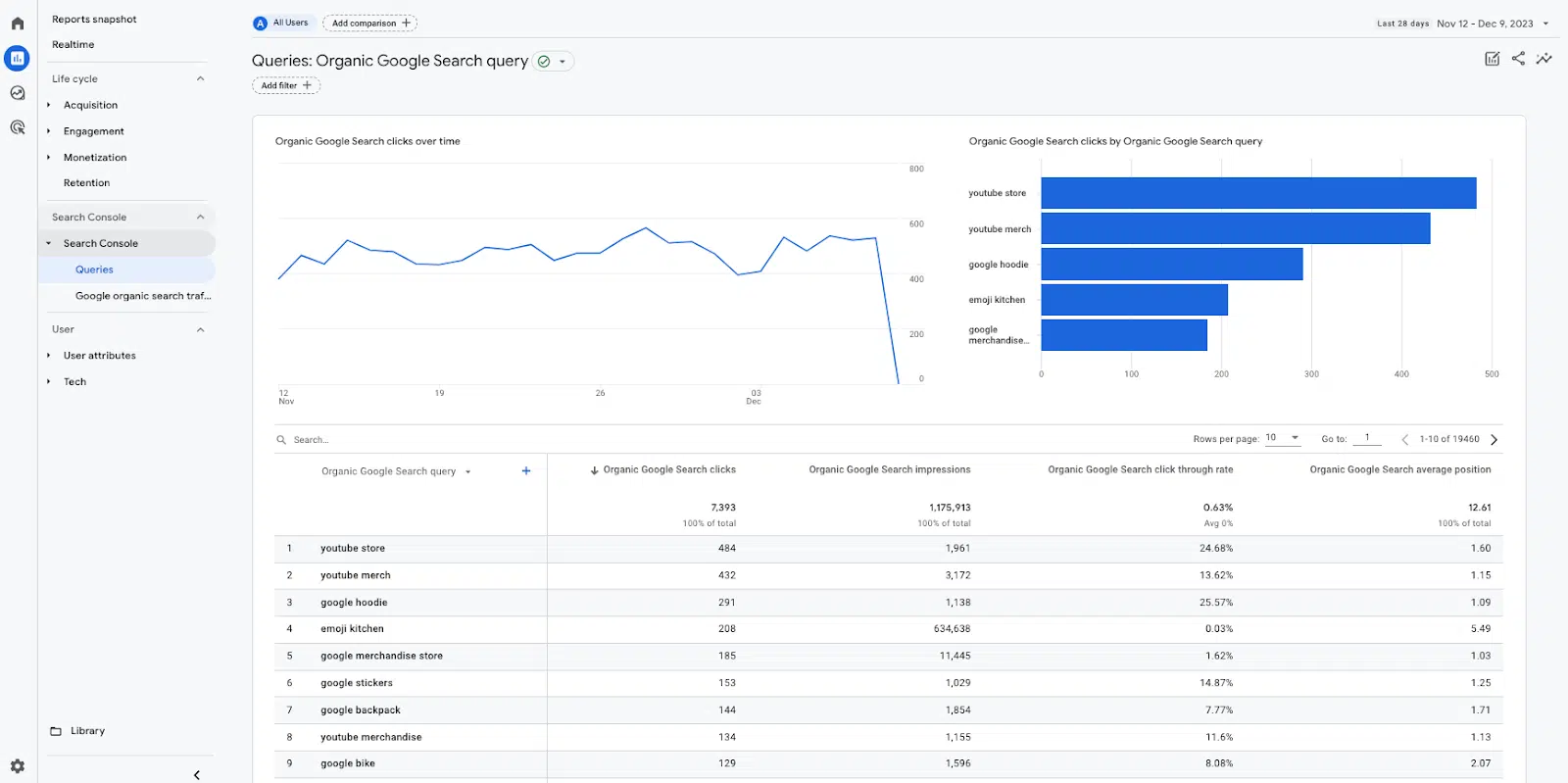
The analysis of this report focuses on three main dimensions:
Google organic search query
This report allows us to analyze the impressions and clicks of the search terms, the click-through rate (CTR) and the average position of the keywords in the SERPs.
With this information, we can evaluate the performance of search terms within the Google SERPs, identifying the keywords that are most effective in driving traffic to our website.
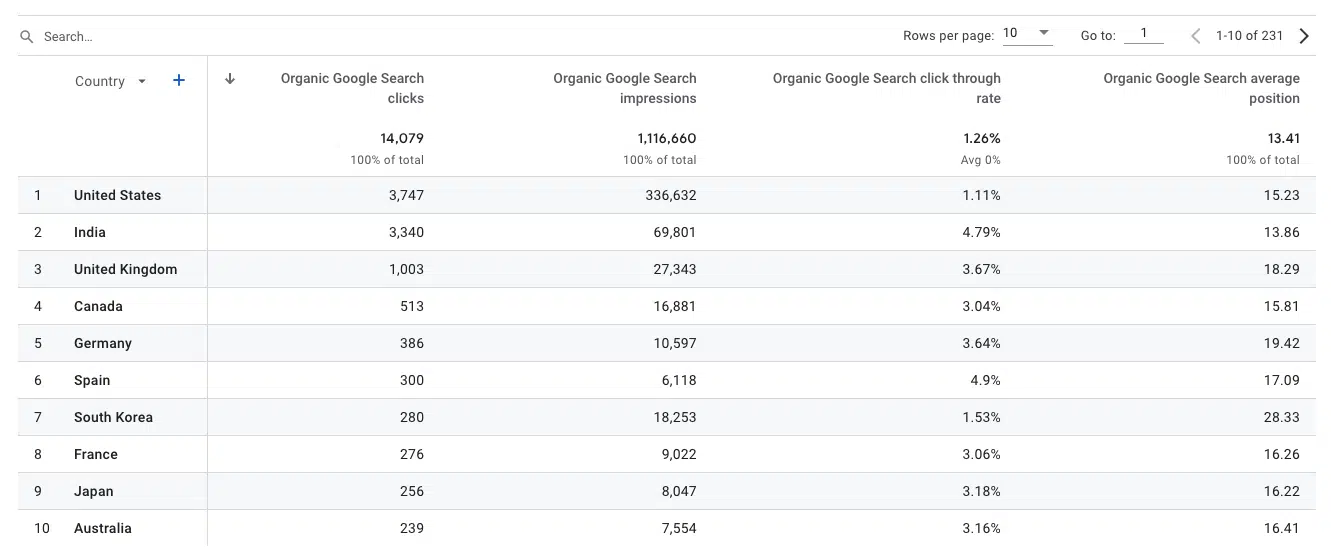
country
This report reveals the countries where organic traffic comes from.
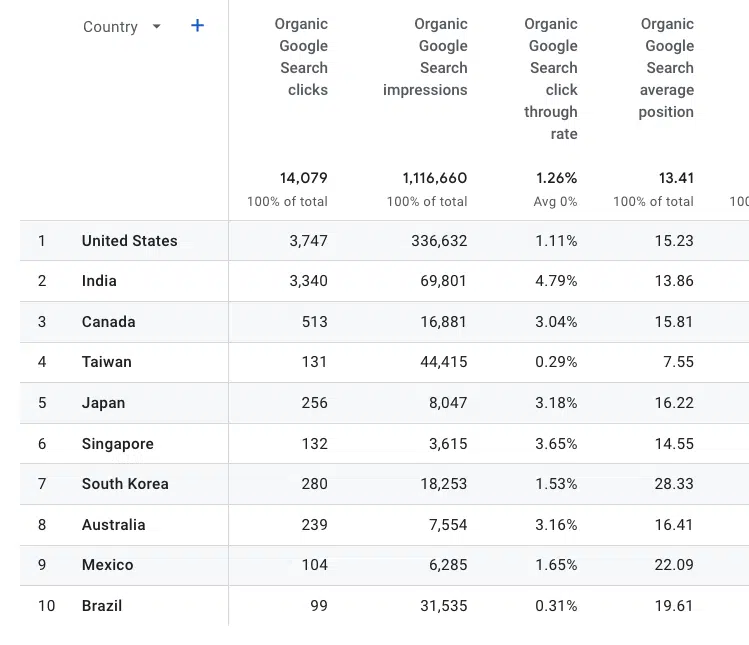
The data presented allows us to analyze clicks, impressions, CTR and the average position of the terms globally by country.
This approach allows for a detailed examination of quantitative data on organic clicks and impressions by region, providing insight into your ranking and CTR over time.
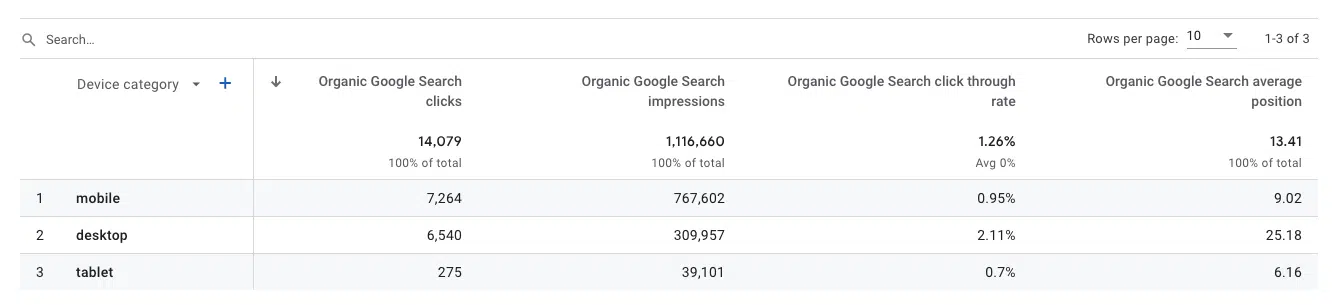
Device category
This report shows the traffic acquired from Google search on the website grouped by device type.
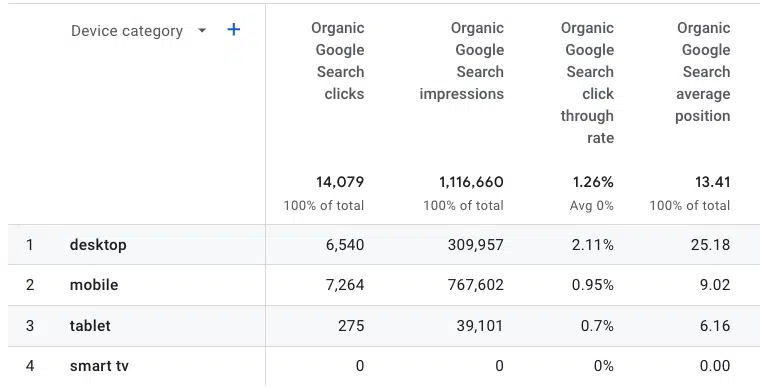
If you want to analyze the difference in clicks, impressions, CTR, and average position by device, applying a filter for that specific dimension will allow us to determine the different performance metrics for each device type.
Google Organic Search Traffic Report
The Google Organic Search Traffic Report shows the results of individual web pages in relation to traffic from Google Organic Search.
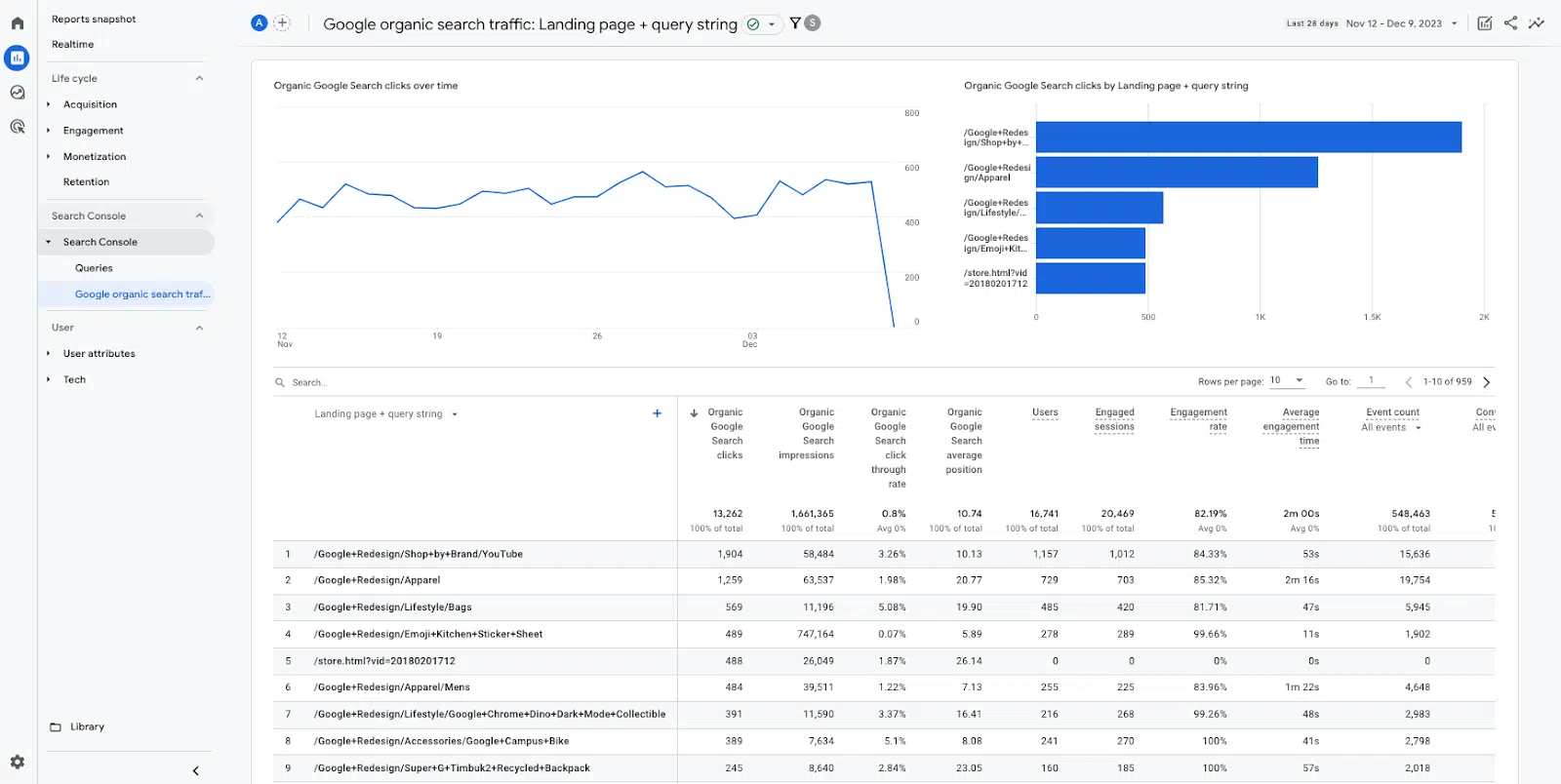
This report can also be analyzed based on three main dimensions:
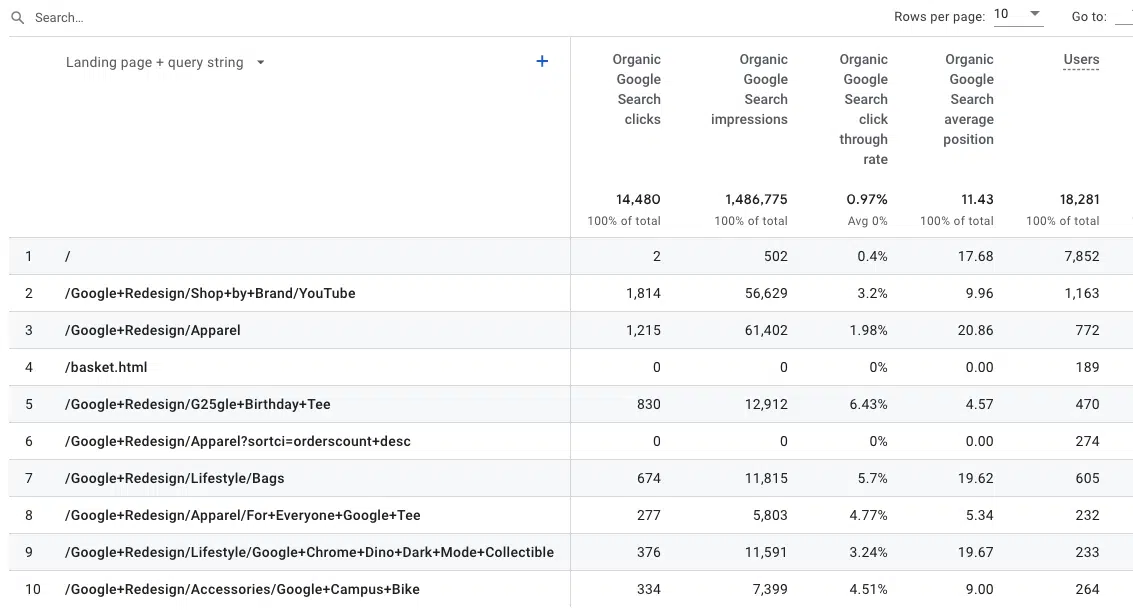
Landing page + query string
This dimension provides information about the specific path of the page and the associated query string.
country
This helps you figure out where your traffic is coming from.
Device category
This provides information about the type of devices used to access the site.
Google’s organic search traffic report enhances our ability to further analyze metrics and results.
What are the key benefits of integrating Search Console reporting in GA4?
We can directly know the analysis of organic clicks, impressions, CTR and average position through the Search Console performance report:
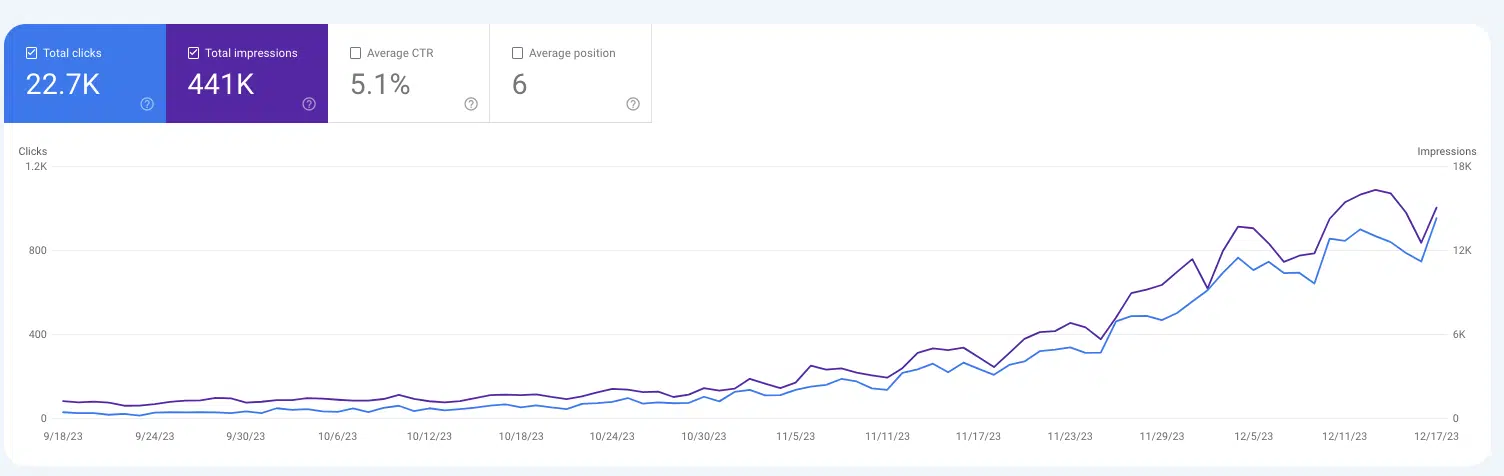
However, incorporating this data into GA4 allows for in-depth analysis.
By linking Search Console data with GA4, we can correlate it with additional metrics not available in Search Console, such as users, sessions, events, or conversions.
With the release of the Search Console report in GA4, the Google Organic Search Traffic Report will directly analyze events and conversions on each landing page.
This will allow you, for example, to determine which page performs better in terms of conversion volume.
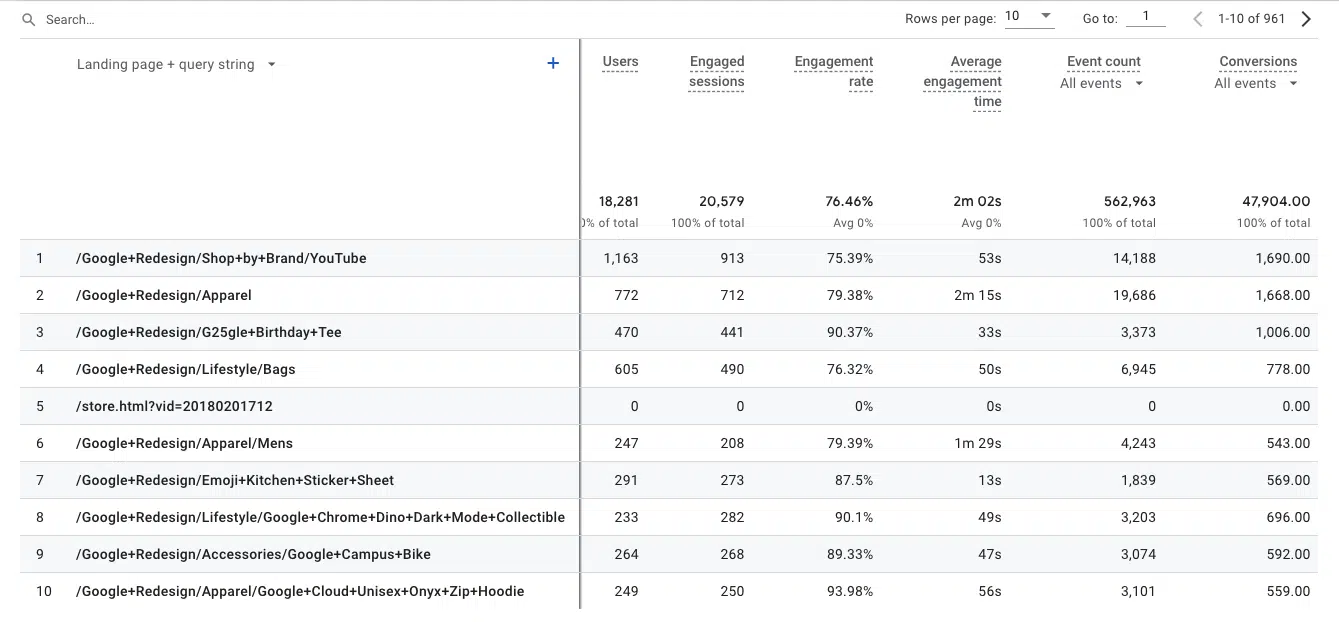
You can also research the conversion type. For example, applying a filter for purchase conversion:
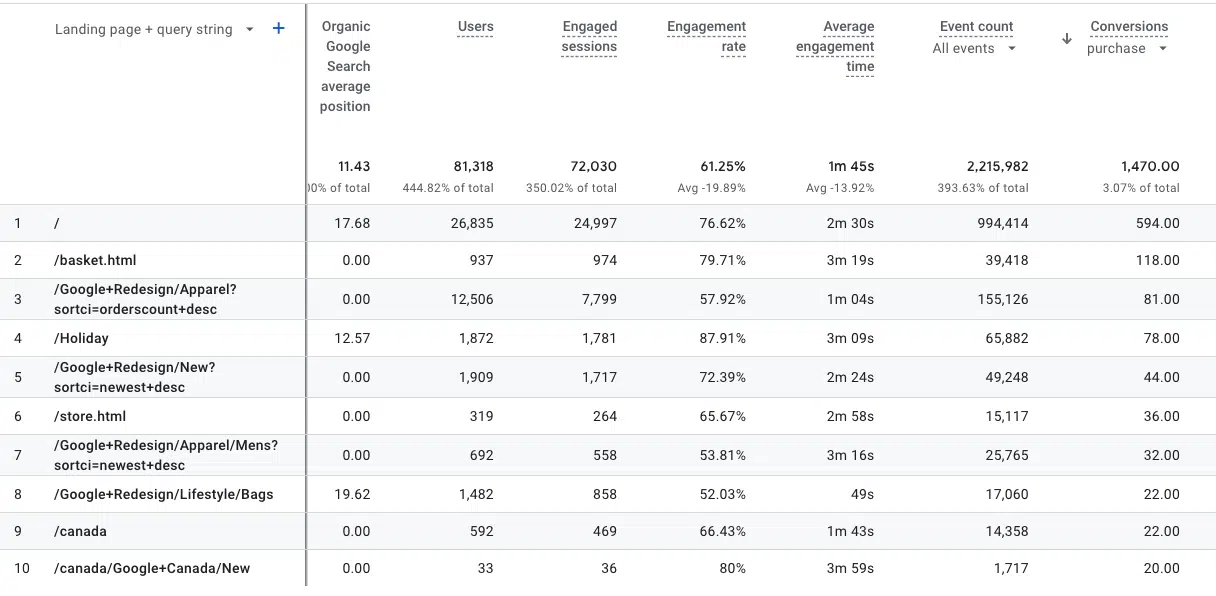
Thus, we can know the total sales achieved through organic Google search on each landing page.
Unlocking organic search statistics
By connecting your Google Search Console property and publishing reports to Google Analytics 4, you open the door to powerful integrated analytics.
This integration enables more comprehensive analysis by relating GSC organic search data to other GA4 metrics such as users, sessions, events and conversions.
The views expressed in this article are those of the guest author and not necessarily Search Engine Land. Staff authors are listed here.
[ad_2]
Source link