


Amidst the popularity of generative AI tools, spreadsheets remain essential tools for marketing analytics. When it comes to organizing, cleaning and analyzing data, Microsoft Excel and Google Sheets have stood the test of time.
All the famous SEO tools export most of their data in CSV format. And while you can use genAI for data analysis, you’ll often still need a good old spreadsheet to get started.
So let’s get back to the basics and see how you can make your SEO and digital marketing life easier with these five tips to improve your Excel and Google Sheets skills.
1. Combine multiple Excel files
This is a basic feature, but you’d be surprised how many people don’t know about it.
Imagine this situation: you are helping a healthcare company with keyword research and they are in a very competitive niche. At the beginning, you are given a list of 10 diseases to explore further.
In SEO, this equates to 10 long-tail phrases, each with an established abbreviation. The end result is 40 files (because there was a time when Semrush didn’t allow you to export both broad match and related phrases in one file).
If you want to combine them into one big file, what most users will do is open each file and then copy and paste, 40 times! If the files are large and take a long time to open, this can easily take more than two hours, before you can even begin to analyze them.
Instead of this time-consuming approach, try this.
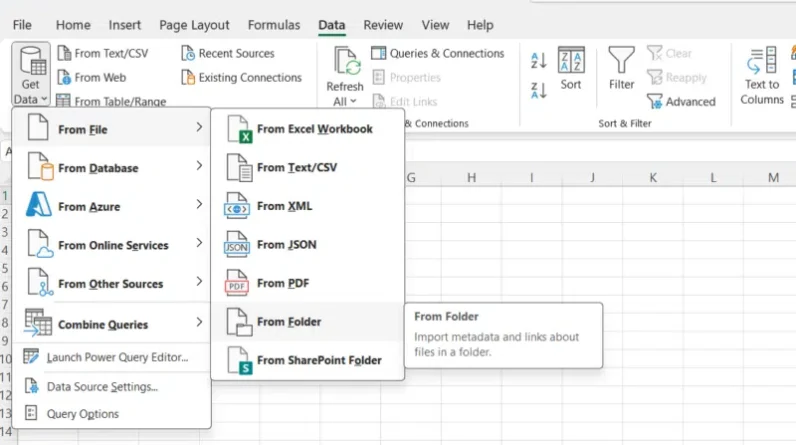
Create a new folder and put all your files in it. (In my case, I had two folders, one for broad match keywords and one for related keywords). Next, open a new Excel file and go to the Data tab. Click the Get Data drop-down menu and choose the From Folder option.
Excel will automatically merge all files into one, as long as they have the same columns.
The best part is that Excel will prompt you for the encoding type before merging the data. So in about five minutes you’ll have a single large file with, say, 50,000 rows.
Five thousand rows is a lot for keyword research, especially when interested parties usually don’t expect more than 50-100 specific ideas.
So you’ll probably want to start cleaning up your file. After removing all keywords without search volume data from the spreadsheet, you can remove all misspelled ones.
2. Check the spelling of thousands of words with one click
There is a way to spell check large Excel files, and this method should work for both English and other languages.
The answer to this task is to use macros. By enabling macros and adding one dedicated to highlighting all misspelled words in a specific color, you can quickly see errors and remove them from your file. You can see the code I used in the image below.

I have removed over 20,000 words from my list of 50,000 with the above example. It takes some time to run if your file is large (so you might want to take a coffee break while you wait).
Note that the code is not perfect. If you have abbreviations or names (brand, country, people), these will all be highlighted as misspelled if they are not capitalized correctly.
You’ll need one more step to check and un-highlight them. In this case, a simple IF formula might do the trick.
Our 50,000 keywords are now down to about 10,000, but more work is needed before we can start doing any analysis.
Dig deeper: 11 Google Sheets formulas SEOs should know
Get the daily search newsletter marketers trust.
3. Detect the language of origin
Another possible step is to define the language of each keyword in your list. Do this step if you want to exclude keywords that are not in a specific language.
Let’s say I’m working on improving a website in Bulgaria. In this case, I should get ideas for new content in Bulgarian, not English. Although some Bulgarian users may use English when searching, it is essential to focus on content in their native language.
For this one, you’ll need Google Sheets and the formula:
DETECTLANGUAGE(text_or_range)
This will give you a good start. However, I would advise further manual revision as the results of this formula are not perfect.
In my Bulgarian example, many Bulgarian words were marked as Ukrainian, Russian, Macedonian and even Chinese. Results for languages using the Latin alphabet are more accurate and reliable.
After adding another layer of information to your data, you can start analyzing it.
4. Count colored cells? There is a macro for this
Each person has different ways of working with and analyzing data. In my case, colors fascinate me.
Formatting color in a column is easy, as there are convenient functions to filter and sort data by color. But it becomes a challenge when you have 30 or 50 columns and you want to know how to count all cells with specific color in all columns.
For example, I was working on an internal linking project where I needed to use Screaming Frog. In this particular case, we were looking for 40 different terms to add internal links to 20 different pages.
After completing the project, I wanted to know how many internal links my team had implemented.
If you’ve followed this far, you might guess that I didn’t want to manually filter all 40 columns one by one. This is especially true because we used color coding whenever we placed an internal link.
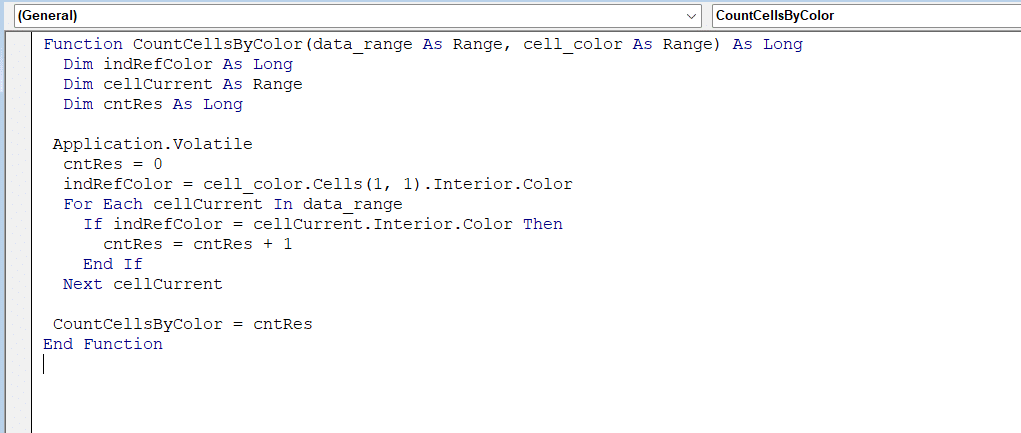
To help you with this task, you can use macros again. You can find some nice examples at This articleand the formula you will need after implementing them is very simple: CountCellsByColor(data_range, cell_color). You can set the cell color using one of your cells.
The good news for all Google Sheets fans is that there is also a way to do this without using Excel. You only need one Google Apps script.
If you’re not familiar with this tool, it’s the colorful icon (what a coincidence) in the Extensions menu. Although I’m a real fan of Excel, this option is much easier.

5. Reduce multiple formula steps with Google Sheets ArrayFormula
Another Google Sheets trick I find useful is ArrayFormula. unfortunately, Google documentation it’s not the best, so people underestimate the power of this formula.
This formula allows you to write other formulas simultaneously and will automatically expand for a particular array.
A real-life example I use this formula for is calculating the ROI of our SEO efforts. I receive invoices in multiple currencies, but my company’s budget is defined in one.
So first, I need to convert the amounts of all invoices to a specific currency with the help of: =GOOGLEFINANCE(“CURRENCY:
The end result will be something like this:
Put in column D :
=ArrayFormula(IF(NOT(BLANK(A2:A)), A2:A * GOOGLEFINANCE(“CURRENCY:” and B2:B and “USD”)), “”))
Put in another cell:
=( E1 – SUMIFS( D2:D, C2:C, “>=” and DATE(2023,1,1), C2:C, “<=” & DATE(2023,1,31) ) / SUMIFS( D2:D, C2:C, “>=” & DATE(2023,1,1), C2:C, “<=" & DATE(2023,1,31))
Where:
The invoice amounts are in column A. The currency codes for the conversion are in column B. The invoice dates are in column C. In the above formula, I am converting the amounts of bills in US dollars. The value generated by the organic channel is in a specific cell, for example E1. I am adding for a specific month (eg January 2023).
The formula looks long, but remember that you only need to enter it once.
Also, you can ask ChatGPT to write to you. All you have to do is describe the desired result and the input information you have.
Analyze data for quick insights using spreadsheets and genAI
ChatGPT can provide quick insights based on data analysis. However, you must first prepare your data so that it is clean and well-structured. Next, craft a detailed prompt that explains the analysis you want step-by-step and ask for specific results.
To access ChatGPT’s advanced data analysis capabilities, you need ChatGPT Plus. This allows for quantitative analysis based on the data, but note that qualitative results may not be entirely accurate.

Remember, ask for things that could be quantified from your data, not answers that require qualitative results, as you risk ending up with inaccurate information.
One thing I like about data analysis with ChatGPT is the data visualization. When you create reports for your team, you can use the power of AI for more advanced tasks like regression, hypothesis testing, and more.
You can also do most of these tasks with the help of Python or soon with Excel + Pythonbut if you’re not a Python powerhouse, ChatGPT is the way to go.
Essential tips on Excel and Google Sheets
At a time when generative AI dominates our daily lives, don’t forget the value of honing your spreadsheet skills.
Mastering Excel and Google Sheets techniques builds critical analytical muscles that allow you to understand the “why” behind the data.
Whether you’re an SEO analyzing keyword lists, a PPC specialist reconciling ad spend, or a CMO interpreting campaign analytics, leveling up your spreadsheet skills is time invested.
With the right methods, you can combine even the largest data sets into clear, actionable insights.
The views expressed in this article are those of the guest author and not necessarily Search Engine Land. Staff authors are listed here.
[ad_2]
Source link