

A recent study published by Adalytics reports that Google Search Partners ads appeared on content that does not comply with its publisher policies.
In accordance with Google’s publisher policies, ads are not allowed to run alongside content that:
Is illegal or promotes illegal activity Infringes copyright Sells or facilitates the sale of counterfeit products Incites hatred or promotes discrimination against individuals or a group of individuals Misrepresents, distorts or hides information about the publisher It makes demonstrably false claims AND more.
The report found examples of search ads on highly trending political websites despite attempts by advertisers to blacklist those domains.
The report raises questions about the lack of transparency and brand safety issues for advertisers.
What is the Google Search Partner Network?
By definition, the Google Search Partner Network (GSP) is:
A group of search-related websites and apps where your ads can appear.
The GSP network is not new to Google Ads.
It was established in 2003 to expand its reach beyond the Google search engine.
Although Google has never published a complete list of websites that belong to the partner network, the Adalytics report found over 51,000 websites that contained Google Custom Search Engine JavaScript enabled.
This infers that websites with that particular JavaScript are part of the GSP network.
For new Google Search campaigns, they are automatically activated on the third-party network.
Advertisers can opt out in campaign settings.
Browsing the compromising location report
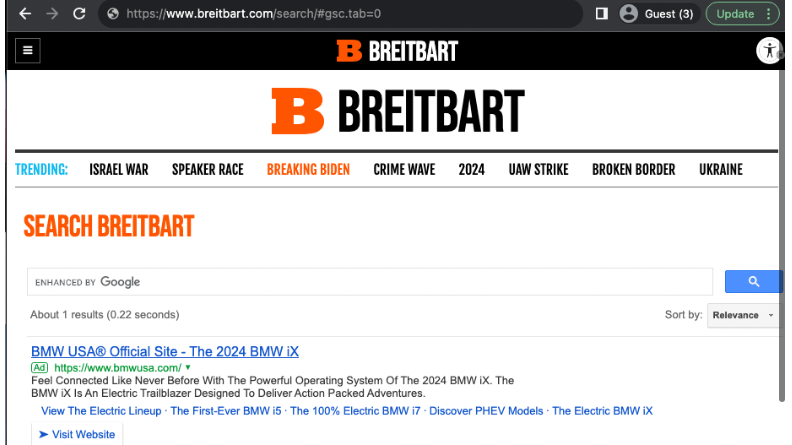
In the Adalytics report, there are several examples of advertisers where they found their ads on questionable websites.
Image credit: Adalytics.io/blog/search-partners-transparency
Advertisers reported that they had previously blocked their ads from these websites.
If this is the case, this could mean that the Google Ads “Excluded locations” setting isn’t working as intended.
The report focused primarily on finding websites in the GSP that appear to not comply with the terms and conditions of Google’s Publisher Policy, such as:
Pornographic websites Websites with material that infringes copyright Websites whose operators are located in countries where US sanctions may apply.
In addition, the findings included that Google search ads paid for by the US Treasury appeared on the websites of companies in countries such as Iran and Russia.
This is important because these countries, including the Iranian Allow Steel Company (IASCO), are under specific sanctions.
Ethical and transparency concerns
The thought-provoking report raises many concerns about the ability to trust Google.
The GSP is known to be a “black box” for advertisers because there is no transparency about who can access the GSP.
Also, if Google wants to make any progress in rebuilding trust with advertisers and the public at large, this report certainly puts that trust in jeopardy.
When it comes to advertising, every dollar counts in today’s economy.
When marketers can’t trust where their ads are showing, they might be aware of moving their money to other platforms.
In an X (formerly Twitter) thread, Dan Taylor, Google’s vice president of global ads, responded to the report’s allegations:
Adalytics has a history of publishing inaccurate reports that misrepresent Google products and make wildly exaggerated claims. 🧵
— Dan Taylor (@edantaylor) November 28, 2023
Google has been in the headlines, along with other tech giants, for antitrust lawsuits in recent years.
What can advertisers do?
There are several ways advertisers can proactively combat ads that appear on questionable content.
#1: Disable the Google Search Partner Network in your search campaigns
Because this setting is at the campaign level, advertisers must manually go to each search campaign to disable GSP.
After going to your search campaign, click on “Settings” in the menu on the left.
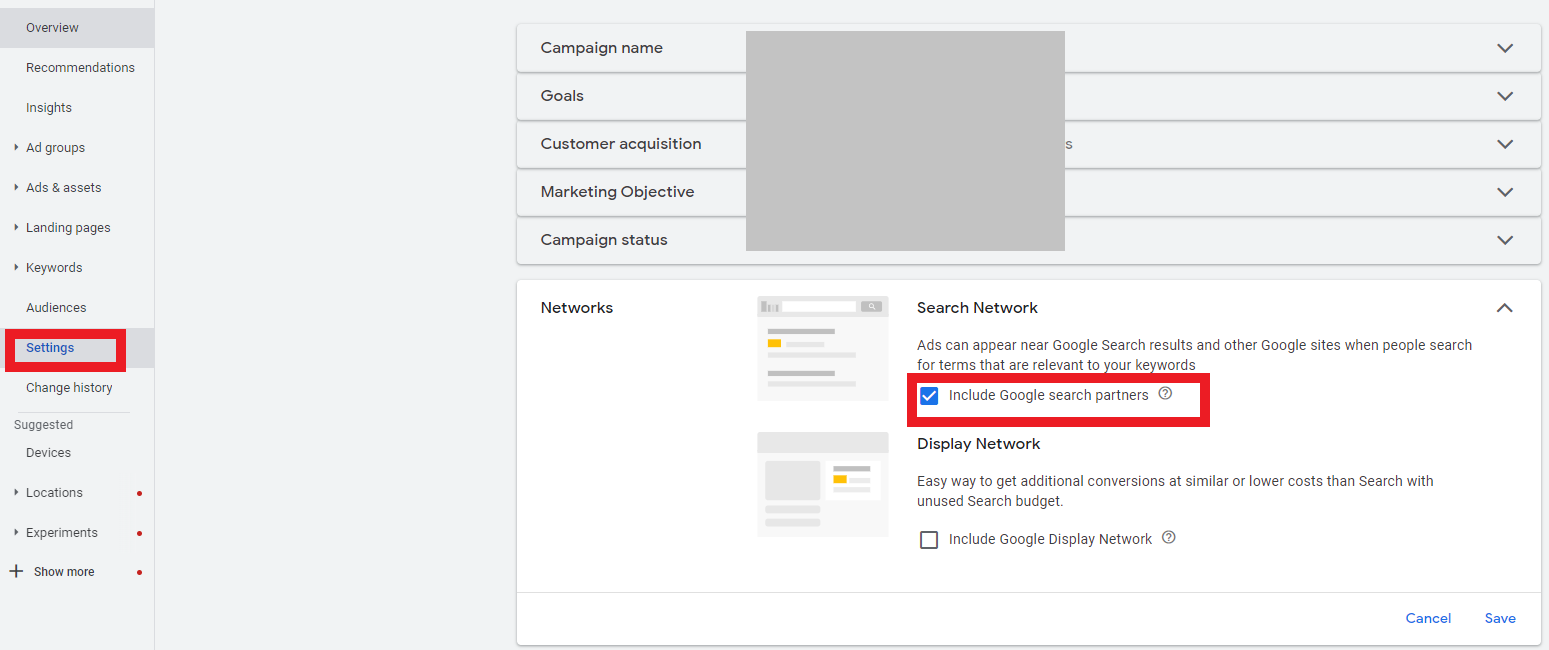
Uncheck the “Include Google search partners” box to disable GSP.
#2: Review your content suitability settings at the account level
It’s important to note that this setting applies to campaigns that run on YouTube or Display.
Go to “Tools & Settings >> Settings >> Content Suitability”
Choose between:
Extended Inventory Standard Inventory Limited Inventory
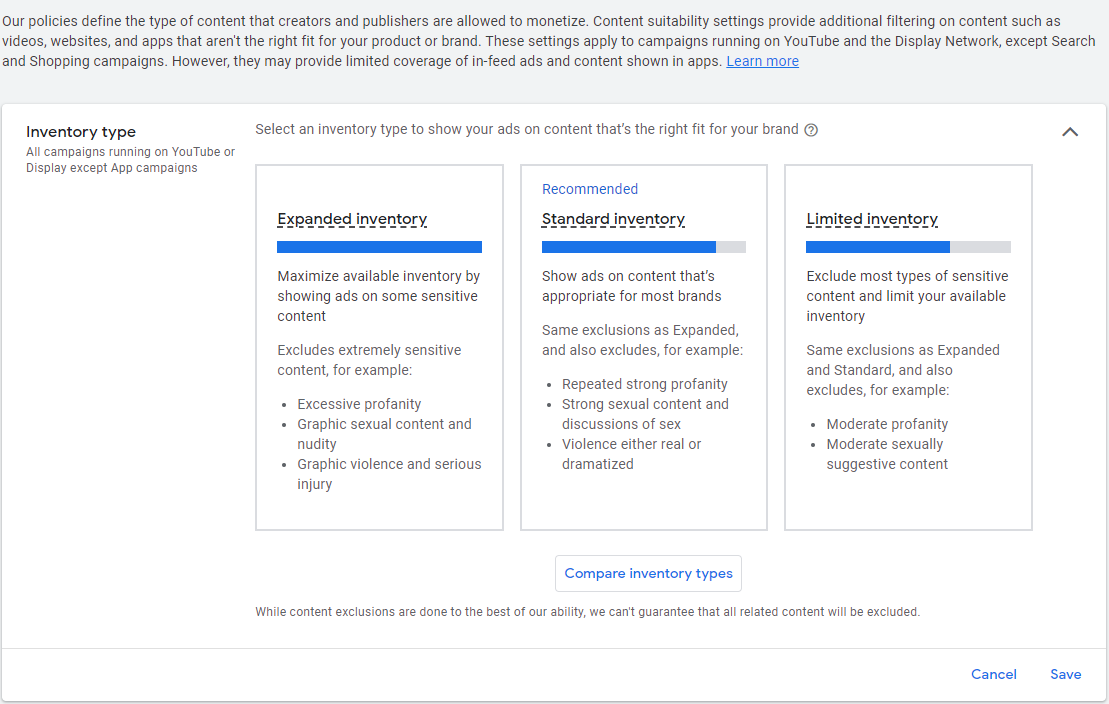
If you are concerned about brand safety, it is advisable to choose “Limited Inventory”, which has more guarantees.
#3: Review where ads were shown in display campaigns
While Google won’t show details about where specific search ads are showing on the third-party network, your Display performance can help.
To check placements in Display Network campaigns, go to a specific Display Network campaign.
In the left menu, go to: “Content >> Where ads were shown”
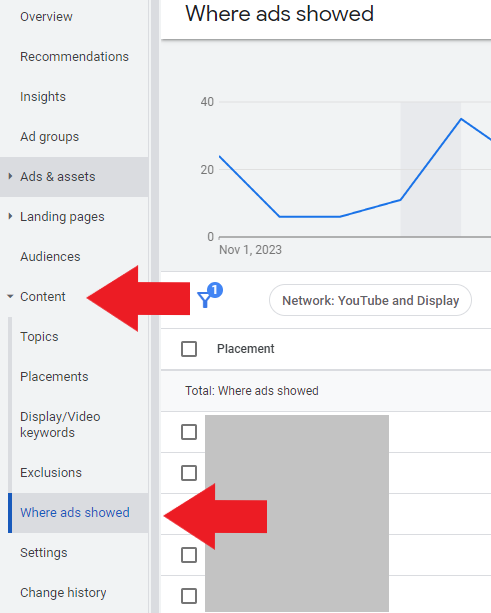
This report shows which domains your ads were shown on.
If there are questionable or underperforming websites or apps, you can deny them at the campaign or account level.
Since we’re talking about gaining control over search ads, you should deny them at the account level.
#4: Use advanced settings to deny additional content exclusions
These advanced settings are at the same point as “content suitability”.
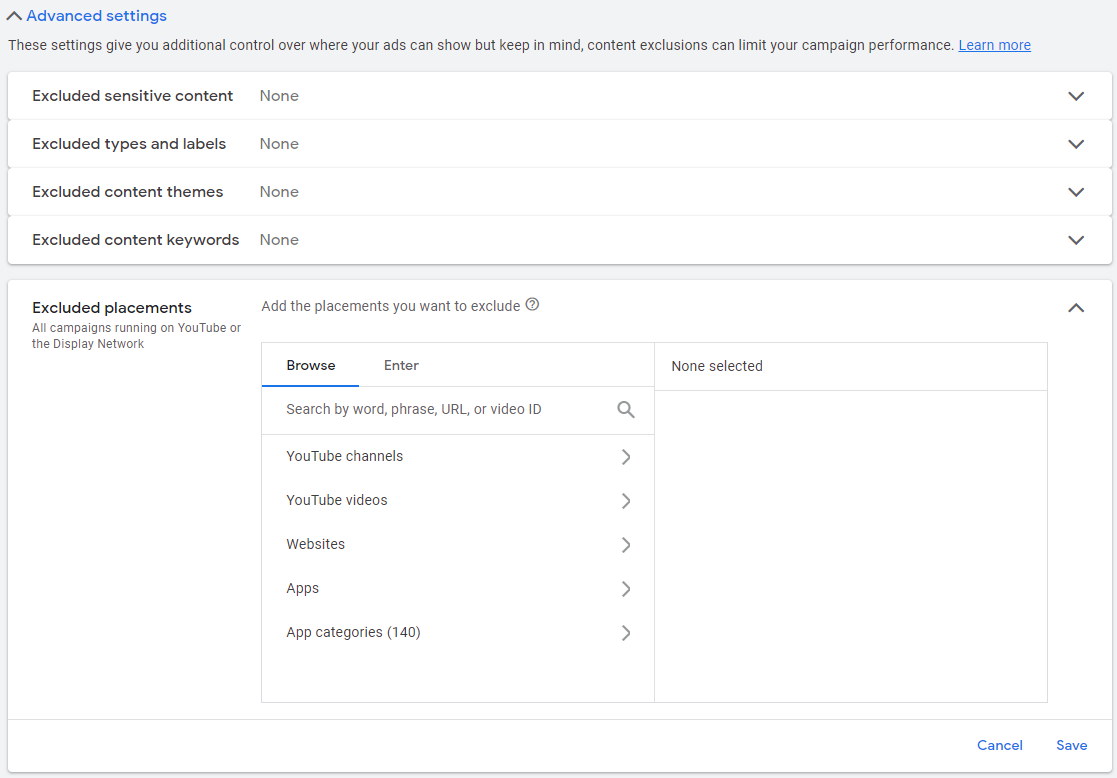
Here you can exclude content types such as:
Sensitive content Types and tags Topics Keywords Websites Applications YouTube channels or videos
If you’ve found questionable placements in your display campaigns, you can disallow them at the account level instead of adding them to all campaigns.
You can read the full report from Adalytics here.
Featured Image: Krakenimages.com/Shutterstock
[ad_2]
Source link